Best Guide To Download Torrents

Torrents have been the most important component whenever we think of getting content from the Net. But sometimes the content we download from torrent is not authentic and also it might contain virus and other non relevant stuff. So if you are going to download something , try to investigate about that torrent. By investigation it doesn't mean you need to dig out the secret information about the uploader or the file but basic know how before downloading a torrent can save your bandwidth and will give you better content. 

1. First thing is to know about the torrent client you want to use. My preference would be to go for the U torrent as it is the lightest one and no un-necessary messages to upgrade to pro version.

Here is the link to download that: www.utorrent.com/downloads‎

Other Good Torrent Clients which you should prefer are Windows:

Bit Torrent: http://www.bittorrent.com/downloads/win/
Flash Get: http://www.flashget.com/index_en.htm
Lime Wire: http://www.limewire.com/download/releases

For Linux Bases System you can consider:

Transmission: Comes as default in Linux Machines


2. After you are done with the client you need to look for the torrent file which you want to download and some good authentic sites are below:

1.   Miniova, 
2.   The Pirate Bay ( Might be blocked by Some ISP's. Use BayMirror Instead)
3.   Torrentz ( Contains links to Multiple torrent Sites)
4.   extratorrent.com
5.   bitenova.nl
6.   fenopy.com
7.   torrentat.org
8.   fulldls.com
9.   spynova.org
10. 2torrents.com
11. scrapetorrent.com
12. litebay.org
13. torrents.to 

My personal favorite from all is The Pirate bay for many good reasons explained later.

3. So once you open the torrent site and you start looking for the torrent then you might consider the comments given on the quality of torrent and most of the time Pirate-bay has good reputation in that as they have good comments from people downloading there.

4. Who is the Up-loader ? Many times new fake Up-loader are trying to ruin the reputation of torrent quantity. Beware of them. Best Up-loaders are:

1. axxo
2. fxg
3. klaxxon
4. YIFY

And the quality of torrent they provide is perfect. Believe me, they spend lot of time and effort in creating good quality torrent. And Pirate-Bay has their torrent first most of the time. There are others also buy i rely on them and hence use their torrent for downloading.

5. How many Seeders are there for the torrent. Always look for the torrent file which has maximum seeders because it will help in downloading faster. Seeding keeps the torrent alive and Leechers ( Who just download but don't Upload) kill them.

6. And last but not the least and as everyone knows torrent is alive because of sharing. So give what you take. It means upload and download ratio should be 1:1 for a torrent to stay healthy. And if you have enough bandwidth, keep the torrent alive by seeding as much as you can.

Enjoy and please leave comments for more information.

Unix Shells in a Nutshell

A Shell is a command line interpreter. As command interpreters, they process commands you enter on the command line in response to a prompt. We can also use the shell as a programming language where it processes commands stored in files called shell scripts. Like other languages, shells have variables and control flow commands (for example, for loops and if statements). 

When we use a shell as a command interpreter, we can customize the environment we are working in. We can make shell prompt display the name of the working directory, create a function or alias for cp that keeps it from overwriting certain kinds of files and so on. We can also write shell scripts that do our bidding, from a one-line script that stores a long, complex command to a longer script that runs a set of reports, prints them, and mails you a reminder when the job is done. 

Lets see which are the various shells available in UNIX or LINUX for us to work upon.


Bourne Shell(sh)
Because of its long and successful history, the original Bourne Shell has been used to write many of the shell scripts that help manage UNIX systems. On UNIX systems the original Bourne Shell is named sh. On Linux systems sh is a symbolic link to bash ensuring that scripts that require the presence of the Bourne Shell still run. 


Bourne Again Shell(bash)
Bash is a Unix shell written by Brian Fox for the GNU Project as a free software replacement for the Bourne shell (sh). Released in 1989, it has been distributed widely as the shell for the GNU operating system and as the default shell on Linux and Mac OS X. Bash can also read commands from a file, called a script. Like all Unix shells, it supports filename wildcarding, piping, command substitution, variables and control structures for condition-testing and iteration. The keywords, syntax and other basic features of the language were all copied from sh. 


Korn Shell(ksh)
KornShell (ksh) is a Unix shell which was developed by David Korn at Bell Labs in the early 1980s and announced at USENIX on July 14, 1983. KornShell is backward-compatible with the Bourne shell and includes many features of the C shell, inspired by the requests of Bell Labs users. KornShell complies with POSIX.2, Shell and Utilities, Command Interpreter (IEEE Std 1003.2-1992.) Major differences between KornShell and the traditional Bourne shell include:
  • Job control, command aliasing, and command history designed after the corresponding C shell features.
  • Three WYSIWYG-style line editing modes designed to make an interactive shell session behave like vi, Emacs, or XEmacs;
  • Associative arrays and built-in floating point arithmetic operations (only available in the ksh93 version of KornShell.)


Z shell(zsh)
The Z shell (zsh) is a Unix shell that can be used as an interactive login shell and as a powerful command interpreter for shell scripting. Zsh can be thought of as an extended Bourne shell with a large number of improvements, including some features of bash, ksh, and tcsh.


Features:
  • Programmable command-line completion that can help the user type both options and arguments for most used commands, with out-of-the-box support for several hundred commands
  • Sharing of command history among all running shells
  • Extended file globbing allows file specification without needing to run an external program such as find
  • Improved variable/array handling
  • Editing of multi-line commands in a single buffer
  • Spelling correction
  • Various compatibility modes, e.g. zsh can pretend to be a Bourne shell when run as /bin/sh
  • Themeable prompts, including the ability to put prompt information on the right side of the screen and have it auto-hide when typing a long command
  • Loadable modules, providing among other things: full TCP and Unix domain socket controls, an FTP client, and extended math functions
  • Fully customizable
Tee Shell(tsch)
tcsh  is a Unix shell based  on and compatible with the C shell (csh). It is essentially the  C shell with programmable  command line completion, command-line editing, and a few other features.

Features:

  • Command history
  • The built-in history command displays the previously-entered commands
  • Command line editing
  • Auto-completion of file names and variables at the command line
  • Alias argument selectors; the ability to define an alias to take arguments supplied to it and apply them to the commands that it refers to. Tcsh is the only shell that provides this feature.
  • Wildcard matching
  • Job control
  • The built-in where command. Works like the which command but shows all locations of the target command in the directories specified in $PATH rather than only the one that will be used.

The C Shell(csh)
The C shell (csh or the improved version, tcsh, on most machines) is a Unix shell  that was created by Bill Joy while a graduate student at University of California,  Berkeley in the late 1970s. It has been distributed widely, beginning with the 2BSD release of the BSD Unix system that Joy began distributing in 1978. Other early contributors to the ideas or the code were Michael Ubell, Eric Allman, Mike O'Brien and Jim Kulp.

The C shell is a command processor typically run in a text window, allowing the user to type commands. The C shell can also read commands from a file, called a script. Like all Unix shells,  it supports filename wildcarding, piping, here documents,  command substitution, variables and control structures for 
condition-testing and iteration. What differentiated the C shell from others, especially in the 1980s, were its interactive features and overall style.  Its new features made it easier and faster to use. The overall style of the language looked more like C and was seen as more readable.

These were the Shells available in Unix, other shells also exist but i don't find them relevant enough to be discussed here as above the the main and the important ones.


About Posix Standard
The POSIX (the Portable Operating System Interface) family of related standards is being developed by PASC (IEEE's Portable Application Standards Committee) A comprehensive FAQ on POSIX, including many links, appears at www.opengroup.org/austin/papers/posix_faq.html. POSIX standard 1003.2 describes shell functionality. The Bourne Again Shell provides the features that match the requirements of this POSIX standard. Efforts are under way to make the Bourne Again Shell fully comply with the POSIX standard. In the meantime, if you invoke bash with the – –posix option, the behavior of the Bourne Again Shell will more closely match the POSIX requirements.


You May Also Like This :

Ubuntu TV : Open Source News

Another milestone achieved in Open Source with the launch of Ubuntu TV.  Its a Smart TV operating system developed by Canonical, based on the Ubuntu operating system and using the Unity 2D user interface built with the Qt application framework.

It is designed for the living-room TV using a remote control. Ubuntu TV likely to hit Indian shores next year Broadening the horizons of its open source operating system beyond the PC domain.

Canonical recently ventured into the television division with Ubuntu TV. The company had unveiled the first Ubuntu TV at CES in Las Vegas this year. Ubuntu TV is likely to reach users around early next year. The device will be launched in India around the same time, said Jane Silber, chief executive officer, Canonical.

Silber quoted that Ubuntu TV is using the same Ubuntu core and underlying platform (and similar 
Unity-based but not identical user experience) and bringing the same Ubuntu principles that we bring to the desktop to the TV. So the simplicity and the dynamics remain the same, which they think is needed in a smart TV. 


TVs are becoming computers these days. People now have computing power in their smart displays. I think we will see the same convergence that is happening in phones and desktops in the TVs too. People now download an operating system for their computers but, in future, they will do that for their TVs. We hope to see Ubuntu TVs shipping early next year. Ubuntu TVs should possibly ship in India around the same time as in other global markets.”

Ubuntu TV will be based on Ubuntu 12.04, is expected to have its own movie store, ability to record and play videos, DVD-Video and Blu-ray Disc support, touch-ready interface ability to integrate all standard terrestrial broadcast system and also satellite and cable services, ability to stream music, photos and videos from a PC to the TV and applications designed specifically for Ubuntu TV.

Linux Networking Commands

While working on Operating System like Linux, you should not waste your time by going into GUI and setting or configuring your Network system. Linux is fun only when the power of its commands is realized and believe me, once you get addicted to the commands, you’ll never think of switching to GUI. We’ll see the some of the network commands you can use to set up your networking system properly:


1. arp
Description:
ARP stands for Address Resolution Protocol, which is used to find the MAC address(your device physical address) of a network neighbour for a given IPv4 Address.

Practical Use:
Let’s assume you have a big office and different devices like Printer, IP Phones, Fax Machines etc.. are connected to network. Now each device has a unique hardware address like this 00:03:23:64:B6:32 called MAC Address or Ethernet Address.To connect this device with an IP address so that it can be access from remote we can add an entry using ARP like:
                  arp -s 190.3.2.134 00:03:23:64:B6:32
and after that, run the command
                                    PING 190.3.2.134
Ping Command is used to set the IP address for the hardware. PING command finally assigns the IP address.And we are done. The device is added to the ARP table and has the IP address now. You can access it now in your network.

Problems you might face:
1. You need to have administrator role to run this.
2. IP address might already be in use.
3. Wrong IP address or MAC address are given in command. PING command will confirm it.
4. PING function is not enabled.
5. The network is using DHCP, BOOTP or RARP and network will automatically assign the ip address.


2. dig
Description:
dig (domain information groper) is a tool for interrogating DNS name servers. It performs DNS lookups and displays the answers that are returned from the name server(s) that were queried. DNS administrators use dig to troubleshoot DNS problems. dig command has some sections in the Output it gives, but its main Section is the Answer Section which you should be looking for. For e.g. to display the output with only the answer section you need to type same as shown in the screenshot:
In above screenshot +noall means we don't want any section to be displayed, but since we want the answer section to be displayed, we add +answer. One more advantage of this command is that it can be also used for doing reverse lookups i.e. you give the address in the command and it will give the corresponding name and it can be typed as :
                                     dig –x
There is one more good option call short for viewing just the ip-address of a web site (i.e the A record), use the short form option as shown below in Screenshot:


3. domainname
The domainname command displays or sets the name of the current NIS domain. If you do not specify a parameter, the domainname command displays the name of the current NIS domain. A domain typically encompasses a group of hosts under the same administration. Only the root user can set the name of the domain by giving the domainname command an argument. To enter a new domain name, type:
                            domainname david
The command sets the NIS domain name to david.
To find out the name of the domain your machine belongs to, you just have to type:
                               domainname


4. ethtool
Its a query to control network driver and hardware settings and also used for displaying or modifying the Network Interface Controller (NIC) parameters.

The command is useful for:
§ Identification and diagnostic of Ethernet devices
§ Extended Ethernet devices statistics
§ Control speed, auto-negotiation and flow control for Ethernet devices
§ Control checksum offload and other hardware offload features
§ Control DMA ring sizes and interrupt moderation
§ Control receive queue selection for multiqueue devices
§ Upgrade firmware in flash memory
It is run as shown in the Screenshot:
You can type the Ethernet interface name as there in your case. By default its eth0 and if you have multiple Ethernet interface you can type as eth1 ,eth2 etc.. To know the version of the Ethernet driver you need to type as shown in screenshot below:
You can also use ethtool with -S option to display the bytes transferred, received, errors, etc, as shown below.
                                  ethtool –S etho


5. finger
In Unix, finger is a program you can use to find information about computer users. It usually lists the login name, the full name, and possibly other details about the user you are fingering. These details may include the office location and phone number(if known), login time, idle time, time mail was last read, and the user's plan and project files. Finger may be used to look up users on a remote machine. Format is
                             "user@host"or "@host"

Basic Unix Shell Script: A Tutorial

Shell Scripting is underlying core of Unix Operating System and if you haven't experienced the beauty of command line or shell interface of Unix while using that OS then you haven't seen Unix at all. Unix Shell Script can make your task much easier and fun at the same time as you can modify the way you want it to and you don't have to depend upon particular software do that work for you.
Why do we need a Shell Script for. You have a set of commands which you want your computer to perform and since you don't want to type one by one you combine all the commands in a Single file and you call it a script file and when you run it, Unix shell will run those commands in Sequence. Well it is just a basic to understand the Shell Script in Simple terms. But There are great things that Shell scripting can do and my aim is to make it fun while understanding it so that we will picture it easily in our mind. 


I'll try to write in a way so that any Layman can get it. It feels bad to see people stuck to old Windows system though I don't deny the User friendliness of Windows(because we have been using them from long), but one should try working on Linux or Unix System once and then you'll see the real beauty and power of using Open Source Technologies. If you are quite new to Unix System and just trying learn the Shell Scripting and you have Windows system installed, don't worry, you don't have to format your Windows to install Unix. Just install Virtual Box in your system  which you can get it from here, and install the Guest operating system of your choice.

You need to do the Following:


1. Install Virtual Box Software ( Its Free and Pretty Good)
2.Download Unix or Linux Flavor like Ubuntu,Fedora or Suse etc.. as per your choice(For a starter I would suggest installing Ubuntu.)You can get it from here
3.Install the Guest Operating System in your Virtual Box.

You also have a Choice to use the Windows based Unix Shell Script software to run the commands but i would suggest to install the Linux OS and enjoy it.


A basic introduction to Unix Shell before starting with Shell scripting is that a Unix shell is a command-line interpreter or in easier way its like a Language interpreter which you need when you don't understand any Language. So Shell helps interpreting our language to a Language which Computer understand and work as we command. There are many Shells available in Unix and if you want to go in depth about them you can get it here . 


We will use the basic terminal to run our shell script and if you want to know a bit about installing some software's in Ubuntu you can check it Here


Ok, lets start discussing scripting right away and we can talk about the commands used in the script on the way. Let's say you login into your Unix Machine and you want to check that how many people are logged in today. We will use different commands for that like who, date:
who: This Shell command tells us how many people are currently logged in. (Just For your Information, Unix is a Multi User Operating system so multiple users can be there at a time and if you are an administrator you may want to check who is currently logged in). The Output of this command is something like this   
pc       pts/0        2012-07-07 23:04 (:0)
Where:
pc:User name of the person Logged in.
pts/0:The Terminal Name of the User from where he is logged into the Shell.
2012-07-07 23:04Date of Login and the Time When User Logged in.
(:0)Terminal from where he is logged(Could be a Remote Machine Also)

Unix uses a system of Pipe where and Output of one Shell command can be used as an Input for other Shell command. You can compare it with multiple Garden Hose pipes tied to each other in a way lie water coming out from one end is entering the other hose pipe. How you want to use that output depends upon you. Like in the above case we need a total count of people logged in and so we apply pipe to our who command like this :
                                                  who | wc -l
Where :
 wc: Word Count and since we want to count the lines as each line tells us the user logged in so we use and option of word count i.e. -l . 

Unix shell give us another beautiful feature of using the options to further tweak the output we want to see. The point is, we need a direct answer to our question rather than all the options which a Unix command is giving us and so we use options and filters etc. And when you run the above command in terminal you'll see the output as number( Number of Users logged into you system) So in above case it will be 1.

Other Shell Command we will use is:
date: It's quite clear from the name itself what it will display and its output without any filter looks like this:
Sun Jul  8 09:06:19 IST 2012
Now lets combine the above two shell command and put them in a script file so that you don't have to run them individually. We will create the file first and you can create that through Unix Shell itself using cat command. Its executed as:
 cat > <file name>   


Name the file whatever you want and run the command like:
                cat > MyFirstShellScrpit.sh
I have put .sh in the end for my understanding that its a shell scrpit file. You can choose not to put that extension but i suggest you should do it for future easy reference. After running the above command you will see that terminal is just showing a blinking cursor which means its waiting for you to add the contents to the file you just created. So we will enter the commands we discussed earlier and its like this :
cat > MyFirstShellScrpit.sh
who | wc - l
date
^d
 ^d is used in Unix Shell to tell that its the end of file and please go back to the prompt. And Bingo your first shell script file is saved and ready to run. But before running a shell script we need to make it executable also like we have and .exe or .bat file in windows. So type in Terminal
chmod +x MyFirstShellScrpit.sh
Where : chmod is a Unix command which tells to change the mode of the file. There are three modes of a file which are read, write and Execute written as r, w, x and + means that I want to add this mode to the file( so - means remove that mode). So the above file will make it executable. We can run our shell script now. And we run it as:
./MyFirstShellScrpit.sh
 And the output should be:
1
Sun Jul8 09:06:19 IST 2012
 Congratulations. You have just run your first shell script. So every time you feel like checking how many users are currently logged in, just run the script and bingo, count of people with date will be there on your screen. 


Lets do one thing more to make this script more useful. You want to track the total number of logins on that day for a particular month so its better to save it in a file also. So we do something like this:
./MyFirstShellScrpit.sh > data.txt
 (Where > operator will send the output of the shell script to the file data.txt and if that file doesn't exist , it will create it automatically)
You just need to be a bit cautious with it because if the above file exist already it will overwrite all the contents without giving any warning.
So how to keep adding the data everyday. For that we use the shell script as:

./MyFirstShellScrpit.sh >> data.txt
Where >> means that append my output to the previous output which is there. So check the file data.txt after a some days you will see something like this:

1
Sun Jul  8 09:06:15 IST 2012
5
Sun Jul  9 09:07:19 IST 2012
4
Sun Jul  10 09:07:19 IST 2012
The output will vary as per number of users logged in at the time you checked. So its like you want to track how many people were in office at around 9 a.m. logged in, this basic command will do the purpose.

This is just the basic and you could see the beauty of simple shell script.

Open Source: Human Knowledge is for the World


Unix,Linux,Red Hat:
Sounds like a very familiar term. Is it ? Heard about it in magazines, news and from people ? People say, I don't see and real significance of this word in my area. Well, it might mean nothing to us, but it means everything for people who are working day and night making software's to help the Open Source Community, so that the monopoly of Proprietary software can end.


So what exactly is Open Source: To understand in a layman's term, Lets understand this with a Simple example:

You have a bike or a Car and after few days you got some technical problem and the bike broke down. Now the problem is that spare parts required to repair the bike are only available with One Service Center and your bike can be repaired at that place only. You are suppose to take your bike at any service center as per your choice and get it repaired there. But the manufacturer is not giving the spare part to any other service center and hence no one can repair it. And now they can charge you what ever they like , since they are the owners of that spare part. Ain't that bad? Its a monopoly by force. How would you feel ? You want the spare part to be available to all and any person or service center can use it and repair your Vehicle.

And in software terms, its like giving the Source code along with the software that a organization is selling to the client. A bit weird for you, no? I mean, you can argue that why would someone will share it recipe along with the dish. But the Open Source Community believes that it should be shared because, you are not alone the owner of this recipe. Its an idea created by millions of software developers, which an organization use for its own business and earn from it and the real developer gets only small percent of share in the name of Salary or remuneration. They need to be given their due equally and that's why Open Source believes the Source needs to be shared.

We can take a note here that Open Source doesn't mean its free. As the saying goes: "There is Nothing Called Free Lunch". And Open Source supports it properly. You can charge whatever you want and if your stuff is good, people will pay it , but you are suppose to share the code also as if i want to upgrade it future, you can have someone else to do it or you can go back to them,if they are best in it.


And that's what organizations, which believe in Open Source Concept, do. They make a Software, either they put it for free or lets say they sell it to you or some other organization at some cost(cost of making a software for your organization) and they also give you the source code along with it , so that you can change it or enhance it or you can give it to some other vendor to enhance it , who you might fell can do better customization. So its a win-win for all. You are getting better stuff and you are free to getting it done by any Vendor whom you feel is competent enough to give you a better quality software. You can get it repaired your self also and you need not to be dependent upon the same vendor to repair it for you who are only waiting for such situation to arise.

I hope it clear it. Let me know your comments on the same.

Kill Android SDK Manager Process in Linux

Android SDK Manager is required to download the tools for the Android Application development. And its been observe that it gets hanged and even if you try to close it from GUI , you won't be able to close it. Doing the CTRL+ALT+DEL can come to the rescue but in virtual machine its not the solution. The best way for such situations is to kill the process.


And you just need to type:  kill <process id>
To know the 'Process Id', we need to know the processes which are currently running and for that we type:
                                                   ps -e

To see more details of the processes, we can use another command:
                                   ps -aux | more
Now we need to know the process id of the android sdk manager and to know that, you need to type:
                               ps -aux | grep 'android'
And it will give you the complete output which would look something like this:
pc 2424 0.4 2.6 469844 54700 ? Sl Jun16 2:52 java -Xmx256M - Dcom.android.sdkmanager.toolsdir=/home/pc/Documents/android-sdk-linux/tools -cla sspath /home/pc/Documents/android-sdk-linux/tools/lib/sdkmanager.jar:/home/pc/Do cuments/android-sdk-linux/tools/lib/swtmenubar.jar:/home/pc/Documents/android-sd k-linux/tools/lib/x86/swt.jar com.android.sdkmanager.Main root 3290 0.0 0.0 0 0 ? S 09:41 0:01 [kworker/0:3]
So here you can see the process id which is: 2424.
Note: If you try to find the process is using:
                                        ps -e | grep 'android'
You won't be able to see the output because the ps -e command doesn't have the full name.But to find the process with this command you need to type:
                                   ps -e | grep 'java'
It will give the same process id which is same as the process id returned by running the command: ps -aux | grep 'android'. So just verify the id for both processes for confirmation and go ahead..


Now, to kill the process, type in Terminal:
                                     kill 2424
If it doesn't kill the process as it might be used somewhere or by another resource, we need to kill it forcefully. So in that case we type:
                                   kill -9 2424
And we are good to go. Please change the process id as it will be different for your case. And Bingo, the process is gone. You can do the same for other processes also which are bothering you and are not going away.
Hope it helps.

How to Install Software In Linux


Installing software or package in Linux is getting easier day by day as it is becoming more user friendly. Now you no need to bother about installing each package individually which are required for one particular application. To install software without any hustle we need a package manager. With Package manager, you just need to select the application you want and the package manager will take care of the ones which are required to install that package and will install them automatically.


One such package manager for Ubuntu is Synaptic. After launch of Ubuntu 11.10 Synaptic Package Manager is no longer installed by default so we need to install it manually. So to start that first you just need to go to your terminal and type:
                                                   sudo apt-get install synaptic

The meaning of the command is shown in diagram below :


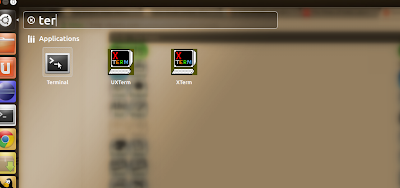
You can find the terminal under Dash Home in Ubuntu 12.04. So in your Ubuntu version it might be at different place and once you find it, create a short-cut for it on the Desktop for an easy access next time.


So type the above command in the terminal and it will start installing the package manager. It will ask for your inputs so just press 'Y' that you want it to be installed. 

In the search box of the package manager , type in the name of the software you want it will fetch the name from its repositories(I hope the internet is up and running). Just select the package choose Mark for installation.

A message will come which will ask you to mark the additional package required to install the software. Click on Mark. 

Choose multiple packages if you want and do the same step as above and then click on apply.


And Bingo , it will start downloading the packages and will install them for you. You don't have to do anything. Just start using the software. :) :) 

Easy No ?